01
A familiar place for your files.
Your cloud storage opens as a drive in Finder. Browse, open and save files with the apps you already use.
A JURACICH TOOL · MADE FOR MAC
All your files, right at home in Finder.
Bring your own cloud storage. Open it like a drive, keep your important folders offline, and give private files an encrypted home.
Native Mac app · Your storage, your files · No app subscription
YOUR PROVIDER. YOUR CHOICE.
S3-compatible storage connects directly. Additional cloud drives use rclone’s account setup.
LESS TO CARRY. MORE WITH YOU.
Your cloud storage opens as a drive in Finder. Browse, open and save files with the apps you already use.
Choose folders to keep on your Mac. They stay available when your connection doesn’t.
An optional encrypted folder protects file contents and names on your Mac before they reach your provider.
A LITTLE HANDS-ON TIME
Connect a sample drive. Open a file. Try an import.
This interactive demo uses sample files only.
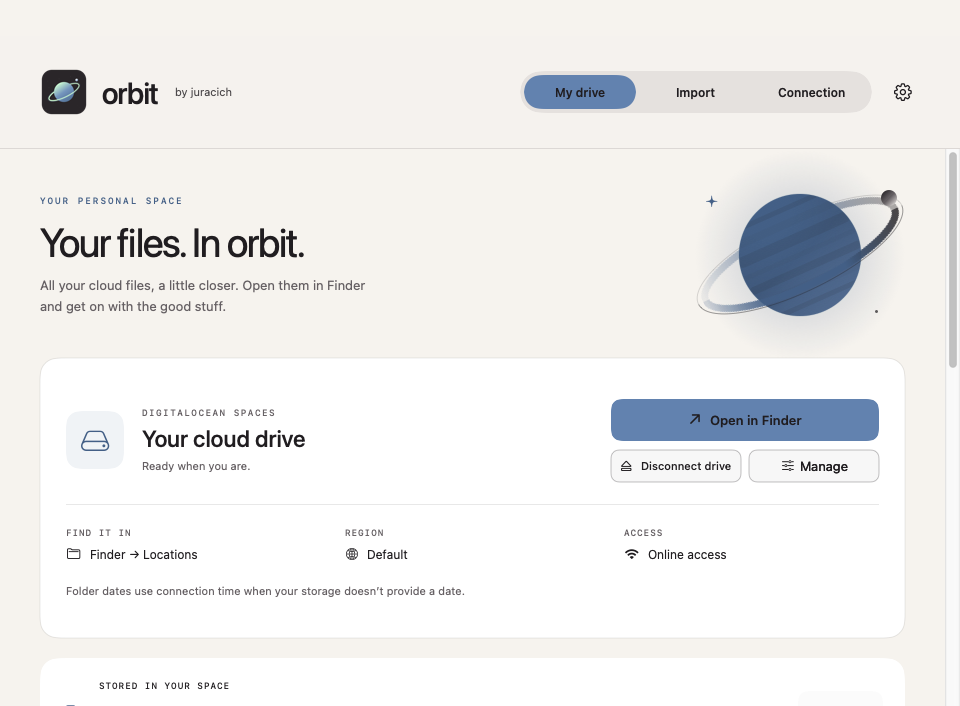
 orbitby juracich
YOUR PERSONAL SPACE
All your cloud files, a little closer. Explore your sample drive.
DigitalOcean Spaces
Connected · sample drive
Finder → Locations
Studio files
Online access
STORED IN YOUR SPACE
8.0 MB4 sample objects · includes encrypted files
See how Orbit’s speed test works.
A private space inside your cloud drive.
Simulated vault · no real encryption or Keychain accessREADY WHEN YOU DISCONNECT
Your work doesn’t always happen near a good connection. Keep selected folders on your Mac and pick up where you left off.
Bring Orbit alongDownload a folder while you’re connected. Only the folders you choose take up space on your Mac.
Open the local copy in Finder. Your downloaded files are available even with Orbit closed.
Choose download-only copies or enable two-way sync. Sync now, or let Orbit check while it’s running.
Connect authorized Macs to the same storage location. Access stays with your provider. Coordinate edits to the same files; Orbit doesn’t replace a live document editor.
Use Orbit Encrypted for the files that need it. Contents and names are encrypted locally. Keep your password safe, and keep a separate backup of important files.
THE PRACTICAL BITS
A Mac running macOS 14 or newer and your own cloud storage account. The release is built for Apple silicon and Intel Macs. The storage engine is included, so you don’t need Homebrew or a separate rclone installation.
Into the storage account you connect. Juracich does not host your files. Your provider manages storage capacity, access permissions and storage or transfer charges.
Yes, with folders you download first. Offline copies use space on your Mac and stay available even when Orbit is closed. Your regular cloud drive and encrypted vault need an internet connection.
Offline sync keeps conflict copies of both versions. Deletions pause sync for review. Orbit does not merge documents, lock files across Macs or provide live co-editing.
Orbit Encrypted uses rclone crypt to encrypt contents and names before upload. Ordinary files in your regular drive are not automatically encrypted. Keep a separate copy of your vault password: there is no password reset for encrypted files.
S3 access keys and optional vault passwords are stored in this Mac’s Keychain. Other cloud-drive credentials remain in the rclone configuration you choose. macOS may ask you to authorize Keychain or Finder access.
A LITTLE LESS TO CARRY
Free app. Your own storage.
Made for the Mac you already love.
macOS 14.0+ · Apple silicon + Intel · Storage engine included